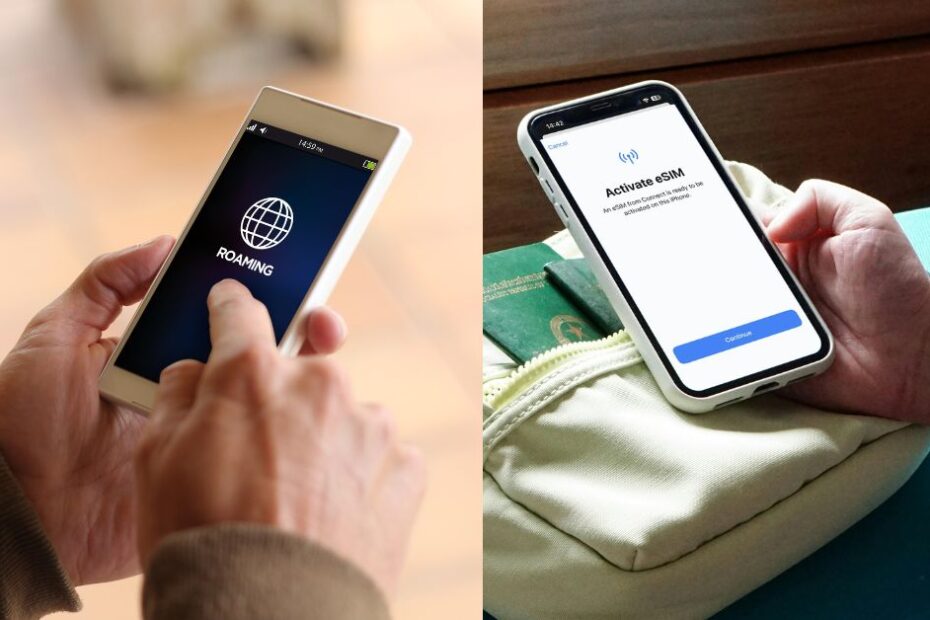
One of the most common anxieties travelers face when switching to an international travel eSIM is the fear of losing their WhatsApp account, active chat histories, or contact lists. Since WhatsApp is registered under your primary mobile phone number, it is easy to assume that switching SIM cards will break the service.
The good news is that keeping your WhatsApp active on your original number is incredibly simple. Once you understand how WhatsApp manages data connections versus user identity, you can travel with a data-only eSIM without missing a single message.
1. Introduction: The Travel eSIM WhatsApp Dilemma
For modern international travelers, staying connected isn’t just about accessing maps or booking rides-it’s about staying in touch with friends, family, and colleagues. WhatsApp has become the undisputed global standard for communication in many parts of the world. However, when you prepare to travel abroad and purchase a travel eSIM, a common question arises: “What happens to my WhatsApp account when I disable my primary SIM card or swap data streams?”
The anxiety is understandable. In the past, physically swapping a plastic SIM card in a foreign country often meant losing access to your primary number, leading to confusion and, in worst-case scenarios, a locked WhatsApp account. Thankfully, modern smartphone tech-specifically eSIM (embedded SIM) technology combined with smart software architecture-makes it incredibly simple to keep your original WhatsApp active without incurring extortionate international roaming rates.
This comprehensive guide will detail how WhatsApp operates on dual-SIM devices, step-by-step configuration workflows, and critical settings adjustments to ensure your communication remains uninterrupted.
2. How WhatsApp Accounts Are Linked to Phone Numbers
To understand why your WhatsApp remains active, it helps to understand how WhatsApp handles account databases. When you first install WhatsApp, the application asks for a phone number. This number is used for one key reason: to verify your identity and generate a unique cryptographic token on WhatsApp’s remote servers. This token binds your account credentials to the local hardware storage of your smartphone.
Here is a step-by-step breakdown of how this registration relationship works behind the scenes:
- The Registration Step: During verification, WhatsApp sends a 6-digit One-Time Password (OTP) via SMS or phone call to the number you enter. Once entered, the app creates a secure session file on your phone.
- The Active State: Once that verification is complete, your account database remains active and stored locally on your device. The phone number serves as a unique account ID, similar to an email address or username on other platforms.
- Network Independence: WhatsApp does not continuously ping your mobile carrier to verify that the active SIM card in your tray matches your registered account ID. As far as WhatsApp is concerned, your identity has been validated on that physical device.
Because of this design, the active session is completely independent of the physical SIM card slot. The app database remains active on your phone until you manually log out, clear the app’s cache, swap to a new smartphone, or choose to register a different phone number. Therefore, switching SIMs or networks will not trigger a log-out screen.
3. The Core Concept: Identity vs. Data Connectivity
To navigate travel eSIMs successfully, you must separate identity from data connectivity:
- Identity (Account ID): This is your original phone number. It is how your contacts find you, how your chat groups identify you, and how your profile is displayed.
- Data Connectivity (The Internet Pipe): Once WhatsApp is verified, it requires only a basic internet connection to function. It does not care where this connection comes from-it could be home cellular data, hotel Wi-Fi, a public hotspot, or an international travel eSIM.
When you switch cellular data routing to a travel eSIM, WhatsApp simply routes outgoing and incoming messages through the new data pipeline. Your account ID remains completely untouched. You do not need to change your number in the app settings, nor do you need to register the temporary number that may be associated with your travel eSIM.
Here is a quick summary comparing the two roles:
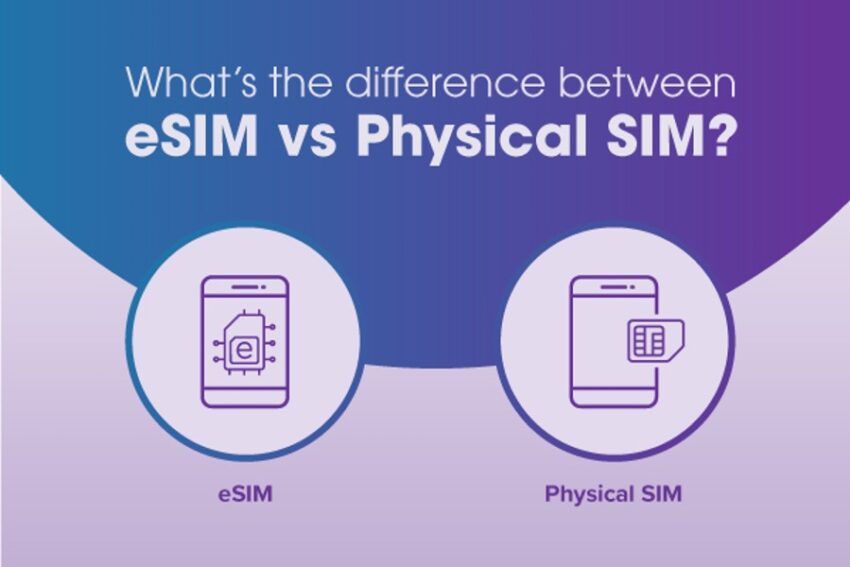
| Feature | Primary SIM (Identity) | Travel eSIM (Data Connectivity) |
|---|---|---|
| Phone Number | Your home number (e.g., +1 234…) | A technical routing number |
| WhatsApp Role | Acts as your unique Account ID | Provides the internet pipeline |
| Roaming setting | Turned OFF to prevent charges | Turned ON to access local networks |
| SMS/Calls | Receive free verification texts | Blocked or data-only |
4. Pre-Travel Preparation: Backing Up Your Chats
Before modifying any cellular settings or boarding your flight, it is a crucial best practice to execute a manual cloud backup of your WhatsApp data. While the SIM switching process is safe, having a fresh backup ensures your chats are protected in case of device loss, damage, or accidental factory resets.
Follow these quick steps to secure your database:
-
On Apple iPhone (iOS):
- Open WhatsApp.
- Navigate to Settings > Chats > Chat Backup.
- Tap Back Up Now to upload your database, media files, and settings to your iCloud storage.
- Ensure you are connected to Wi-Fi to avoid consuming data during the backup.
-
On Android Devices:
- Open WhatsApp.
- Tap the three dots in the top-right corner and select Settings > Chats > Chat Backup.
- Verify your Google Account link, select the desired backup options, and tap Back Up to upload to Google Drive.
- Optionally toggle “Include videos” if you want video files saved.
5. Step-by-Step Guide: Activating the eSIM on Arrival
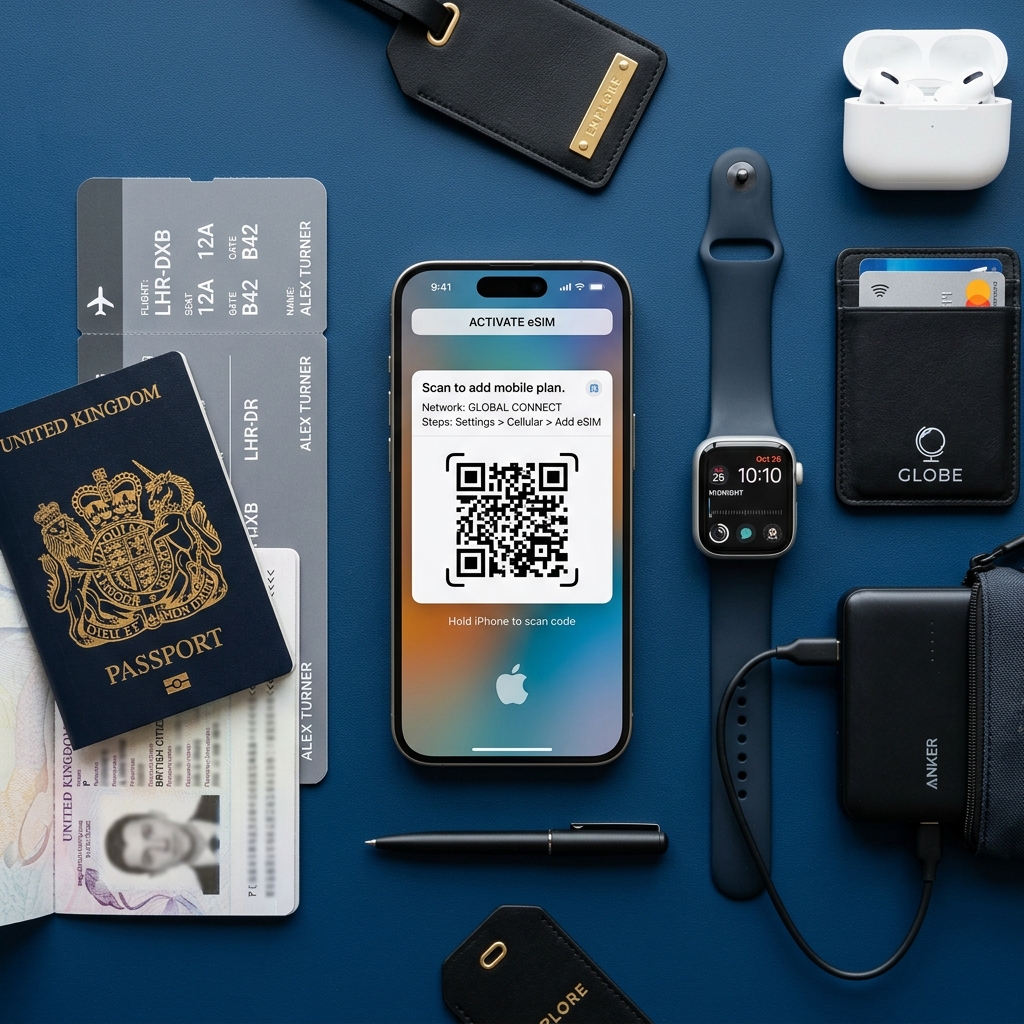
Once you land at your destination, it is time to enable your travel eSIM. If you have pre-installed the eSIM profile (recommended), you can activate the line in your system settings.
- Keep Your Primary SIM On: Do not physically remove your primary plastic SIM card or disable its profile in settings. Keeping both profiles active is key to a smooth Dual-SIM workflow.
- Turn on the eSIM Line: Navigate to your phone’s cellular network settings and toggle your travel eSIM profile to ON or Enabled.
- Change the Data Route: Under the system’s “Cellular Data” or “Mobile Data” dropdown menu, select the newly activated travel eSIM as your preferred data channel.
- Enable Roaming on the eSIM: Ensure that Data Roaming is enabled specifically for the travel eSIM profile. Many travel eSIMs require roaming to be active in order to establish a handshake with local partner carriers.
6. How to Handle the “New SIM Detected” WhatsApp Prompt
The first time you boot WhatsApp after activating your travel eSIM, the app’s internal sensors will notice the addition of a secondary SIM profile. This often triggers a system notification or an in-app pop-up prompt stating:
“New SIM card detected. Would you like to update your WhatsApp phone number to this new number?”
Crucial Step - Selecting the Right Option: You must select “Keep My Number” or “Use Existing Number” (depending on whether you are on iOS or Android). Do NOT select “Change Number” or “Update Number”.
Here is what happens if you make the wrong selection:
- If you select “Keep My Number”: WhatsApp does nothing, keeping your account bound to your home phone number. All contacts, chat histories, groups, and media remain exactly as they were.
- If you select “Change Number”: WhatsApp will attempt to migrate your account information to the temporary technical phone number associated with your travel eSIM. This will create a blank chat interface, notify all your contacts that you have changed your number, and block you from receiving messages sent to your original number.
If you mistakenly click “Change Number,” don’t panic. You can reverse this by navigating to WhatsApp Settings > Account > Change Number and migrating your account back to your original home number. Note that this reversion will require you to receive an SMS verification code on your home SIM, which means you will temporarily need to enable roaming or SMS reception on your primary line to complete the process.
7. Dual-SIM Configurations for iPhone (iOS) Users
To keep your primary line active (for receiving crucial SMS verification codes) while ensuring the travel eSIM handles all internet traffic without incurring high roaming bills, configure your iPhone as follows:
- Open Settings > Cellular.
- Tap Cellular Data and select your Travel eSIM line.
- Toggle Cellular Data Switching to OFF. This is vital; it prevents iOS from switching back to your primary home line when the eSIM coverage is temporarily weak.
- Tap your primary home line label under “Cellular Plans”.
- Toggle Data Roaming to OFF on your primary line to prevent background data charges.
- Leave Turn On This Line active. This ensures you can still receive incoming carrier texts (like bank OTP codes) without incurring data charges.
8. Dual-SIM Configurations for Android & Samsung Users
Android devices manage Dual-SIM cards in a similar manner, though UI labels may vary slightly depending on your manufacturer’s overlay (e.g., Samsung One UI vs. Google Pixel):
- Open Settings > Network & Internet > SIMs (or SIM Card Manager).
- Set the Preferred SIM for Mobile Data exclusively to your Travel eSIM.
- Set the Preferred SIM for Calls and SMS to your Primary SIM. This maintains your capability to receive emergency texts and calls.
- Select your Primary SIM settings and toggle Data Roaming to OFF to block cellular data usage.
- Select your Travel eSIM settings and ensure Data Roaming is toggled ON to allow internet connectivity.
- Disable any “dual-SIM data auto-switch” features in the advanced menu to prevent unexpected carrier switching.
9. Critical Mistakes: What NOT to Do with WhatsApp Abroad
To avoid losing access to your chats during your trip, make sure you avoid these three critical pitfalls:
- Never Uninstall WhatsApp: If you uninstall or log out of the app while abroad, WhatsApp will require a 6-digit registration PIN via SMS to verify your device upon reinstallation. Since your travel eSIM is data-only and your home SIM has data roaming disabled, you may not receive the verification SMS, leaving you locked out until you return home.
- Do Not Try to Verify the eSIM Number: The travel eSIM may have a technical number associated with it, but do not enter this number inside WhatsApp settings. It is unnecessary and will log you out of your primary account.
- Don’t Turn Off Your Primary Line Entirely: While you should block data roaming on your home SIM, keeping the line enabled allows you to receive incoming standard carrier SMS without paying data roaming fees, which is useful for security checks.
10. Understanding WhatsApp Calls, Media, and Voice Notes
When you travel with a data-only eSIM, you can continue to use all of WhatsApp’s communication features exactly as you do at home. However, because you are using cellular data from a prepaid travel plan, it is important to monitor data consumption:
- VoIP Voice & Video Calling: Unlike traditional cellular calls, WhatsApp calls are routed over Voice-over-IP (VoIP) protocols. They use data packets rather than cellular minutes. A standard voice call consumes about 0.5 MB to 1 MB per minute, while a high-definition video call can use 3 MB to 5 MB per minute. To conserve data, go to WhatsApp Settings > Storage and Data and enable the toggle for “Use Less Data for Calls”.
- Voice Notes and Media Downloads: Sending and receiving voice memos, photos, and high-resolution videos directly drains your travel eSIM’s gigabyte allowance. In group chats where multiple media files are sent daily, this can exhaust your data quickly. We recommend setting media auto-downloads to “Wi-Fi Only” under your app settings so that large files only download when you are back at your hotel.
- Live Location Tracking: Sharing your location via WhatsApp uses GPS coordinates sent over cellular data. This is extremely lightweight, using less than 10 KB per minute, making it a highly efficient way to coordinate meetups with travel companions without worrying about data caps.
11. Troubleshooting: WhatsApp Verification and OTP Issues
If you encounter issues while traveling, here is how to resolve them and secure your account:
- Missing Verification SMS (OTP): If you are forced to re-verify your WhatsApp account while abroad (due to an app crash or device change), you must receive an SMS code. To do this, go to your phone’s settings, temporarily enable your primary home SIM, and turn on data roaming briefly. Receiving incoming text messages is usually free or costs a few cents with most carriers, so long as you do not pick up phone calls or use cellular data. Turn it off immediately after receiving the code.
- Two-Step Verification PIN: For security, enable WhatsApp’s Two-Step Verification (under Settings > Account > Two-Step Verification) before you travel. This requires a custom 6-digit PIN that you create. It is stored locally in your memory and does not require SMS verification to unlock if the app prompts you for validation during your trip.
- Slow Message Delivery & Connecting Status: If your chats show a spinning wheel or “Connecting…” status, your eSIM might have lost cellular connection. Toggle Airplane Mode on and off to reset the connection. Alternatively, go to your eSIM carrier settings, turn off “Automatic Network Selection,” and manually select a different local carrier from the list.
- APN and Data Access Issues: If your phone shows 5G/4G bars but WhatsApp won’t connect, the eSIM might require custom APN (Access Point Name) settings. Check your provider’s instructions and enter the specific APN name (e.g.,
internetorwbdata) in your phone’s mobile data settings to open the internet pipeline.
12. Frequently Asked Questions (FAQs)
Here are the answers to the most common questions about using WhatsApp with a travel eSIM:
No. Because you selected “Keep My Number” when prompted, your account ID remains linked to your original number. Your contacts will see your profile, name, and contact details exactly as they always do.
WhatsApp will continue to work perfectly on your phone even if you remove the physical SIM card, as long as your phone is connected to cellular data via the eSIM or a Wi-Fi connection. However, we recommend keeping both active in Dual-SIM mode so you do not lose the physical card and can still receive text alerts.
Yes. WhatsApp calls use internet data. A voice call consumes about 0.5 MB to 1 MB per minute, while a video call can consume between 3 MB and 5 MB per minute. Connect to Wi-Fi whenever possible if you are on a limited data plan.
Yes. You can run WhatsApp Business and WhatsApp Personal concurrently on a single device, using your travel eSIM data connection to power both. Each app will maintain its respective primary number profile.
13. Summary Checklist: Your WhatsApp eSIM Travel Strategy
Review this quick checklist to ensure a worry-free travel experience:
- Before Departure: Complete a manual backup of your WhatsApp chats to iCloud or Google Drive.
- Before Departure: Pre-install your travel eSIM profile via app or QR code.
- On Arrival: Enable your travel eSIM and set it as the primary line for Cellular Data.
- Primary Line: Turn off mobile data roaming on your primary SIM, but keep the line active for incoming texts.
- Astro Settings: Turn off data auto-switching to prevent accidental fallback charges.
- WhatsApp Prompt: Select “Keep My Number” or “Use Existing Number” if prompted.
- Safety Rule: Never log out, uninstall the app, or attempt to change your registered number while traveling.